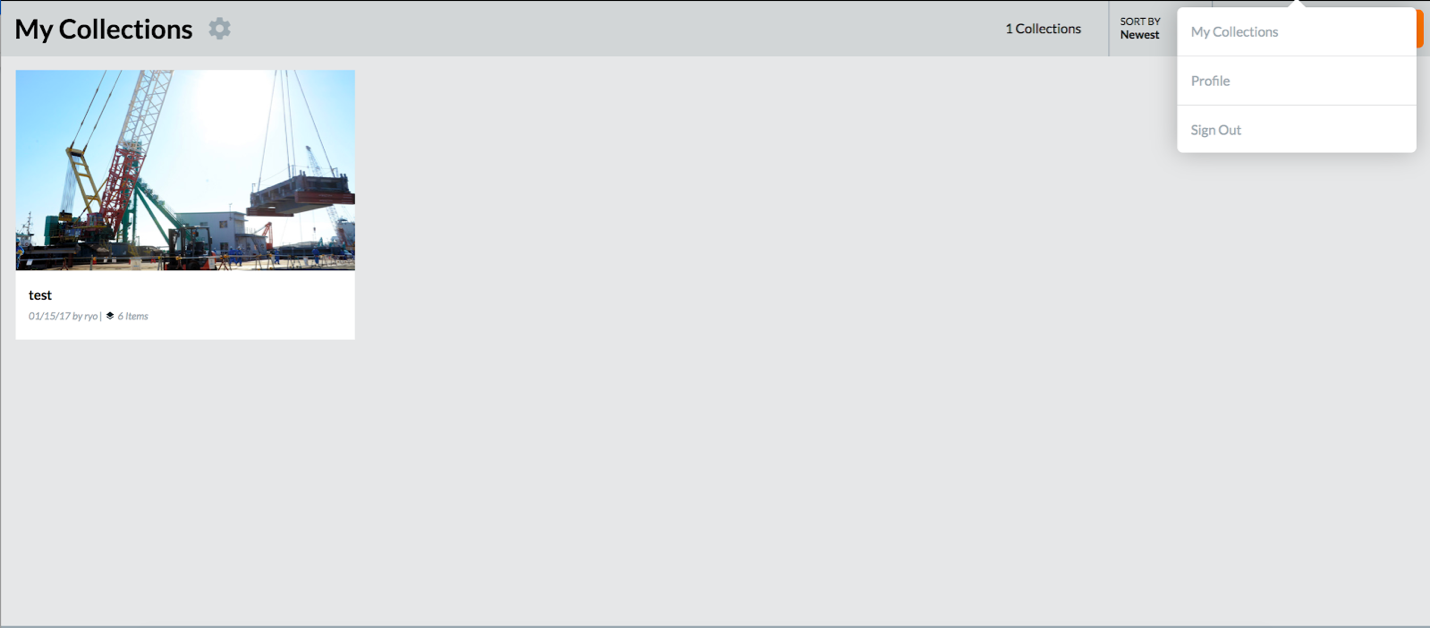
You must be signed into your JDA account to create collections. To register for an account, click the “Sign In” button in the upper right corner and choose “Create New Account”.
When you are searching on the archive or browsing collections made by other users, the “My Collections” panel will appear to your right. Using this panel, you can create and add items to your collection. Any collections you have created will appear in this panel, so you can easily navigate to them while using the JDA.
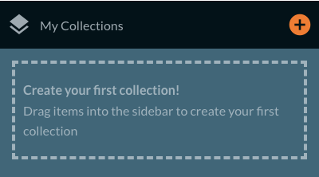
To create a new collection, use the orange “+” icon. If you are creating your first collection, you can also click and drag an item to the panel to begin.
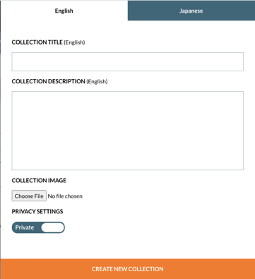
In the pop-up window, give your collection a title, a short description, and an image if you have one in mind. Collections are private by default, so don’t overthink this step. You can edit this information later when you are ready to make your collection public.
Once your first collection is created, you can add items in three ways.
1. Click on an item to open the pop-up view and use the checkbox to add it to your collection. This allows you to read an item before adding.
2. Click and drag an item to your collection. This allows you to add many items from your search results at once.
3. Click and drag a collection to your collection. This function allows you to build up a large collection quickly. Text slides, topics, and notes will not be added when you add an entire collection.
By default, items are ordered from newest to oldest.
If you are logged in, you can view all your collections in the “My Collections” side panel. To view the full content of your collection from the side panel, click on the collection, scroll to the bottom, and click “View Collection”. This will take you to a full view of the collection, where you can also edit its contents.
You can change the view of your collection by clicking between "List," Photo," and "Map." If there are no images in your collection, nothing will appear in Photo View. Similarly, if none of the items in your collection have geolocation metadata, nothing will appear in Map View.
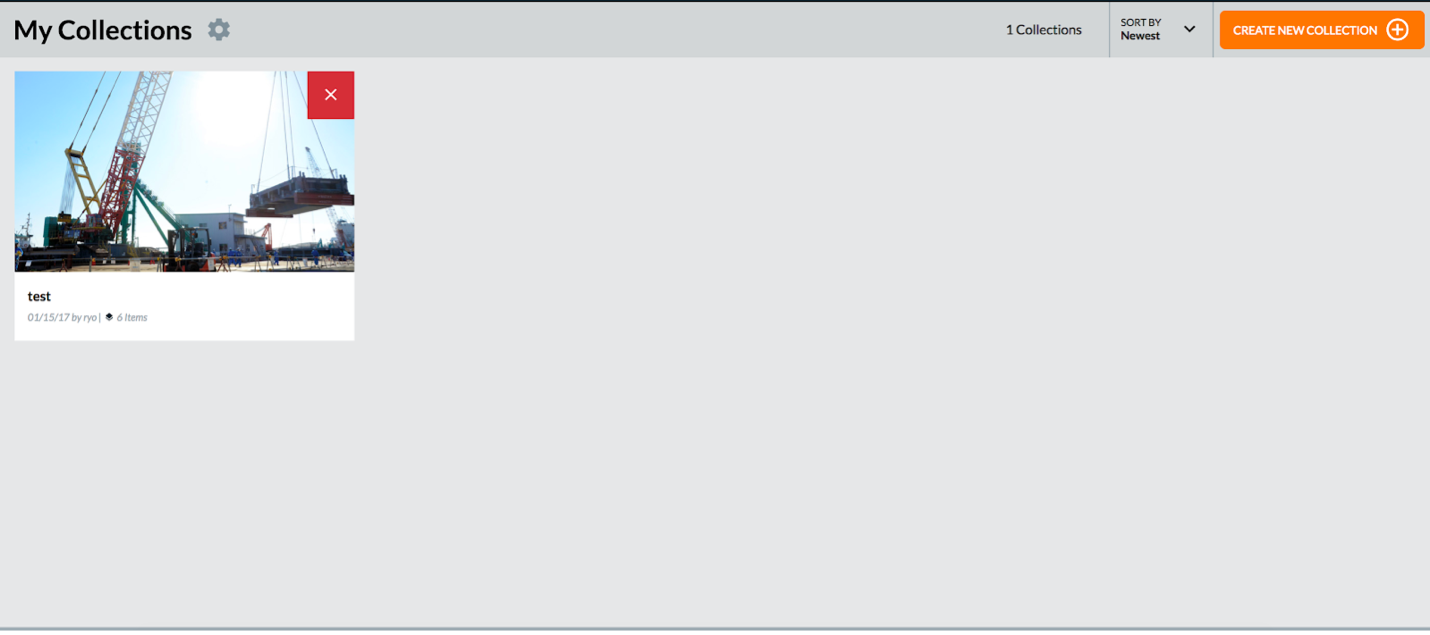
Another way to view your collections is by using the “My Collections” page, under your username in the top right corner. Click on the collections on this page to access the full view. This is also the only place where you can delete a collection. To delete a collection, click on the gray gear-shaped icon next to the "My Collections" title on the left side of the page. You will now see a red "x" icon on the top right corner of each existing collection. Please note that once you delete a collection you cannot get it back, so be careful when you delete a collection.